
Knowledge Base
Navigating Gojee
Last updated on September 18th, 2024
Navigation Methods
There are two main ways to get around in Gojee – the menu bar at the top of the screen and the Navigation Dashboard.
- The menu bar is for people who prefer efficient workflows and reading text-based options.
- The Navigation Dashboard is for people who prefer more visual association with the processes they wish to perform.
It is up to you whether you prefer to use one or the other, or a combination of the two.
The Menu Bar

The company logo at the top left of the screen will take you to the Navigation Dashboard by default. The quick links to the right of it are for the Learning Center (if on trial), the Business Performance dashboard (if admin), Navigation Dashboard, and the Active Jobs pages – commonly used pages. Other pages can be accessed from the dropdowns:
- My Work – Active Jobs, Daily Task Review, Timesheets, Time Entry, Bulk Logged Work, Time Clock, and Leave.
- Planning – Staff Schedule and Job Schedule.
- Sales – Leads.
- Jobs – Customer Jobs and Record Consumables.
- Resources – Inventory, Assets, Templates, Staff, Professions, Tags, and Contacts.
- Reports – Contains a variety of reports. See Reports & Insights for more information.
- (User badge) – access Organisation Setup, My Account, User Settings, and the Log out option – as well as view which version of Gojee is current.
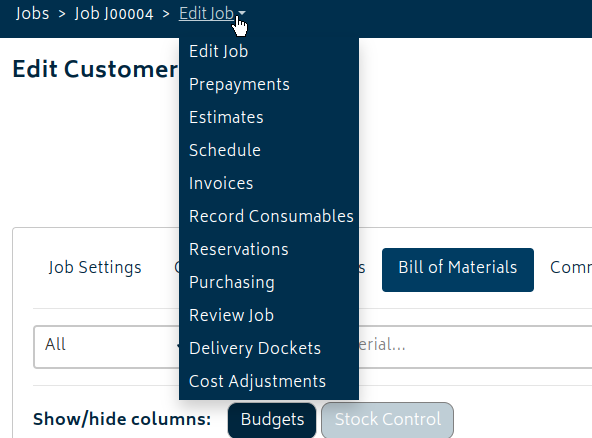
At the bottom of the menu you will see a breadcrumb trail. You can click on any previous breadcrumb to bring you up to the previous level. For jobs, this breadcrumb trail doubles as the Job Actions buttons, or if the screen is compact, another dropdown for navigation:
In addition to the above, there is also Help (which brings you back to the Knowledge Base) and Feedback (for giving Gojee feedback).
Navigation Dashboard
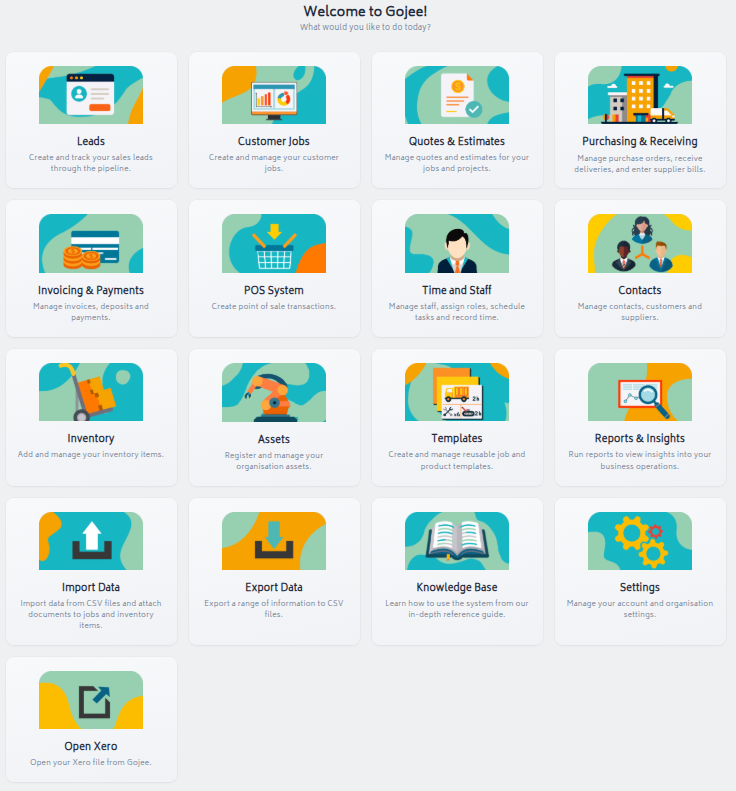
The Navigation Dashboard provides visual tiles that open up into actions that can be performed. It will change which tiles are shown based on the user’s role.
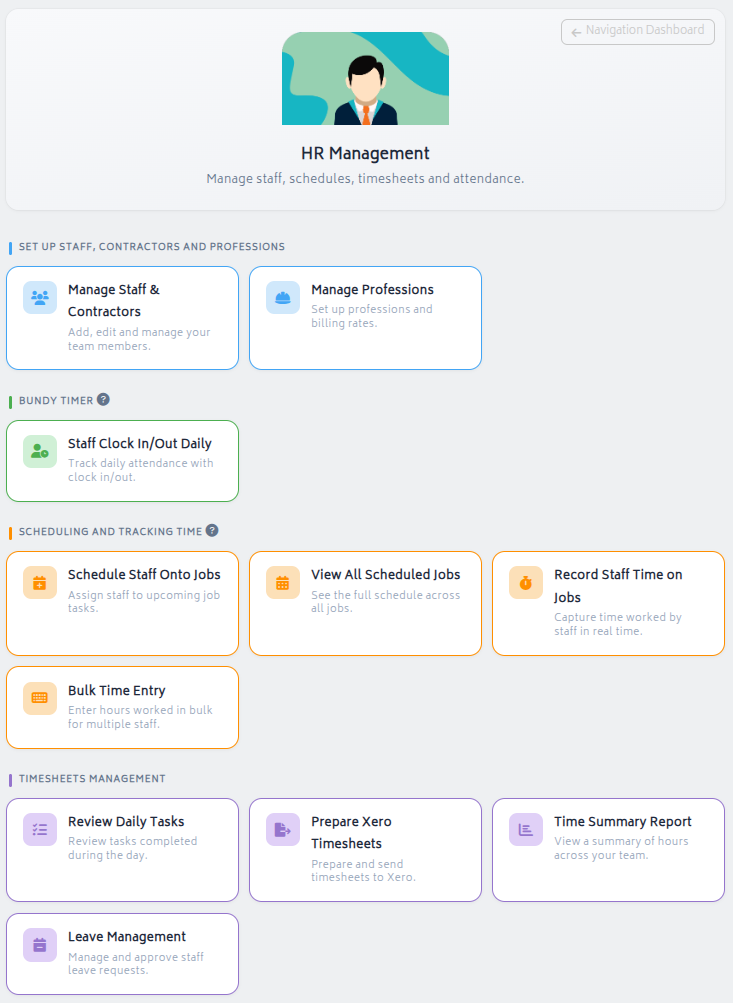
For more information on what each of the functions does in the Navigation Dashboard and in the Menu Bar, please continue reading the associated sections in the Knowledge Base.


