
Knowledge Base
Take Payment for an Invoice
Last updated on September 6th, 2023
Paying Invoices
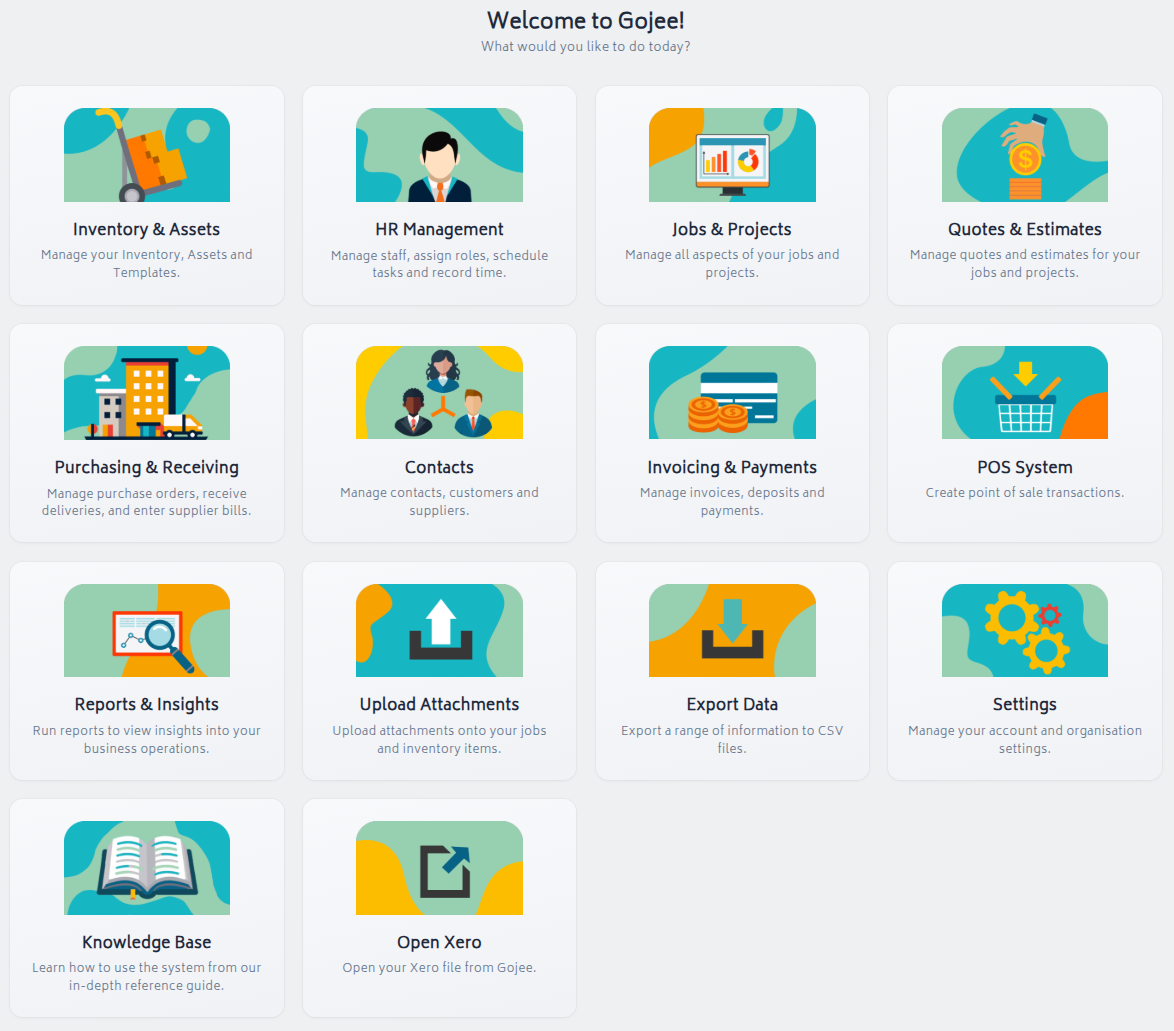
To get started, navigate to the Job Actions menu for a job and select Invoices, and choose an invoice to take a payment against. You can alternatively click “Invoicing & Payments” from the navigation dashboard:
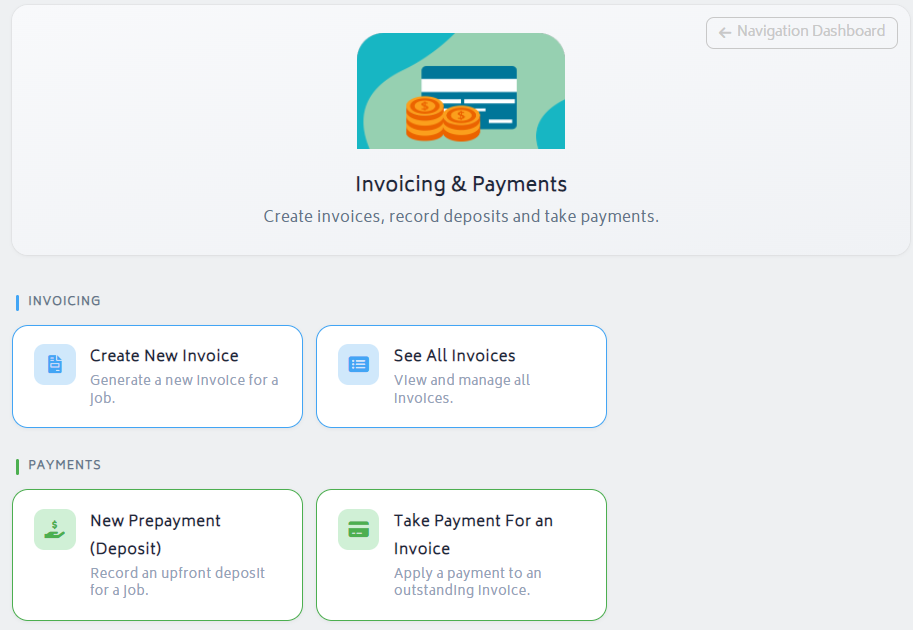
- Click “Take Payment for an Invoice”
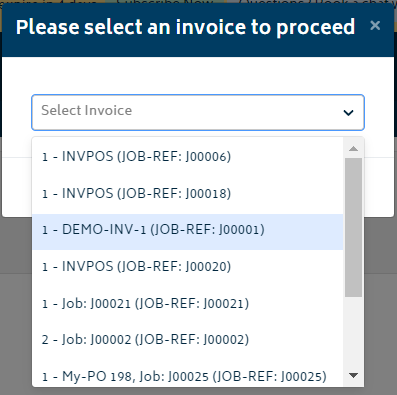
- Select and invoice to take payment against:
This will navigate you to the invoice page where you can choose to take cash or card payments from within Gojee. Xero payments will also be synced.
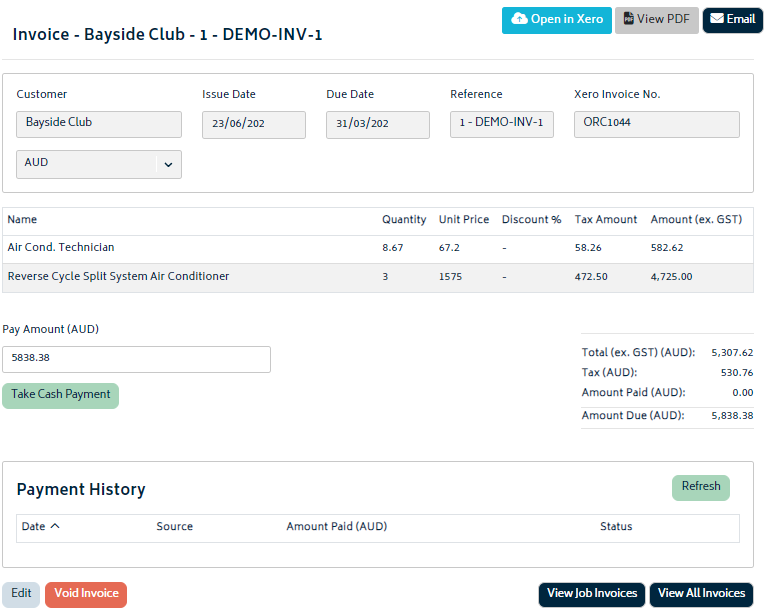
Refer to the Take Payment for POS Jobs section for detailed instructions on taking card or online payments.
Payment Sync from Xero
Alternative to the Gojee process, any credits or payments applied to an invoice from Xero will also be reflected in Gojee. During the overnight sync, all payments will be synced across from Xero.
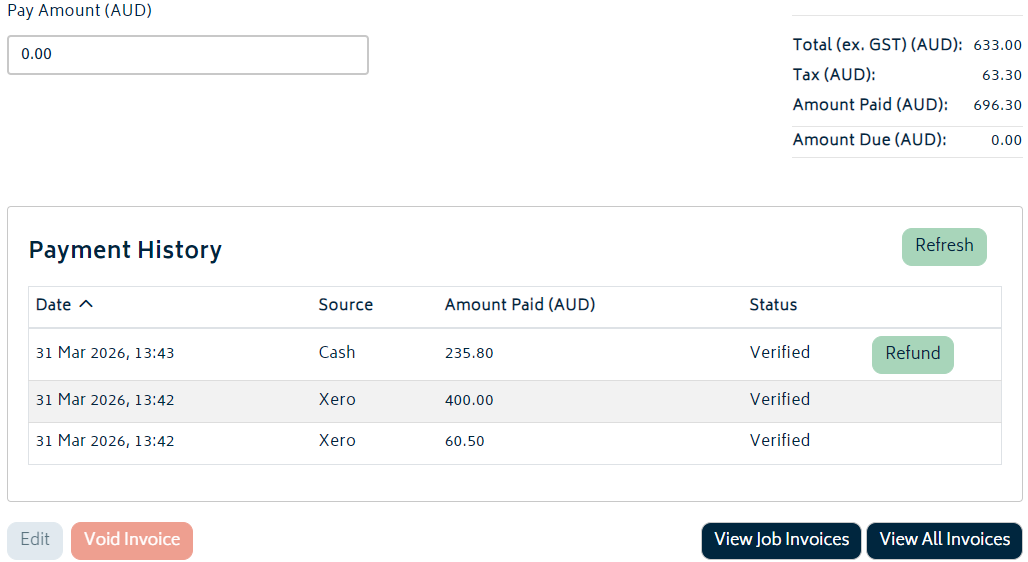
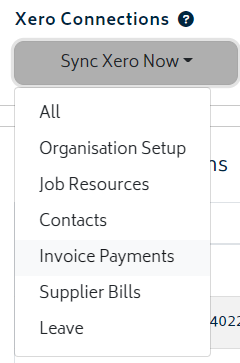
In the case that you need to update an invoice’s payments manually, you can pull invoice payment status in from Xero via a manual sync.
Both standard payments and credit notes applied to an invoice will be applied from Xero. The total amount paid and amount credited will be visible from the invoice list. Any amount credited will not count towards revenue on an invoice’s related job.
Updating PDF for Paid Invoices
Any change in payment status will require the invoice PDF to be updated. You can do this with the Sync PDF button at the top right.
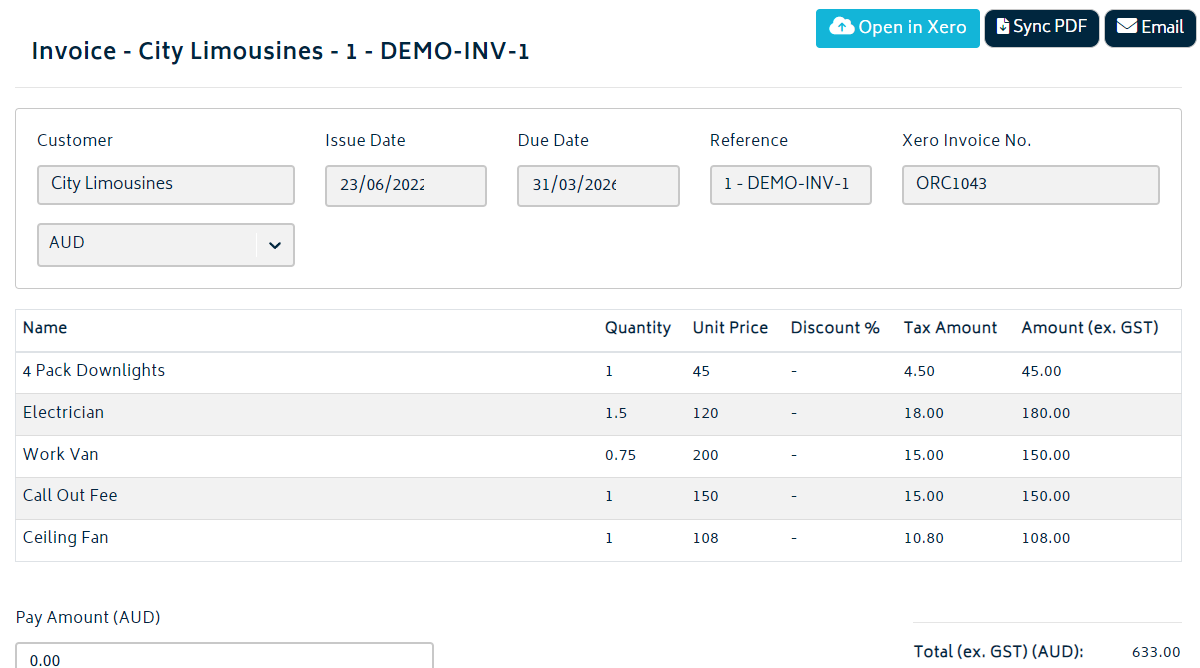
You can also send this updated PDF out with the email option next to it to update the customer on the state of their payment.


