Knowledge Base
Edit Gojee Invoices
Last updated on September 14th, 2023
Introduction
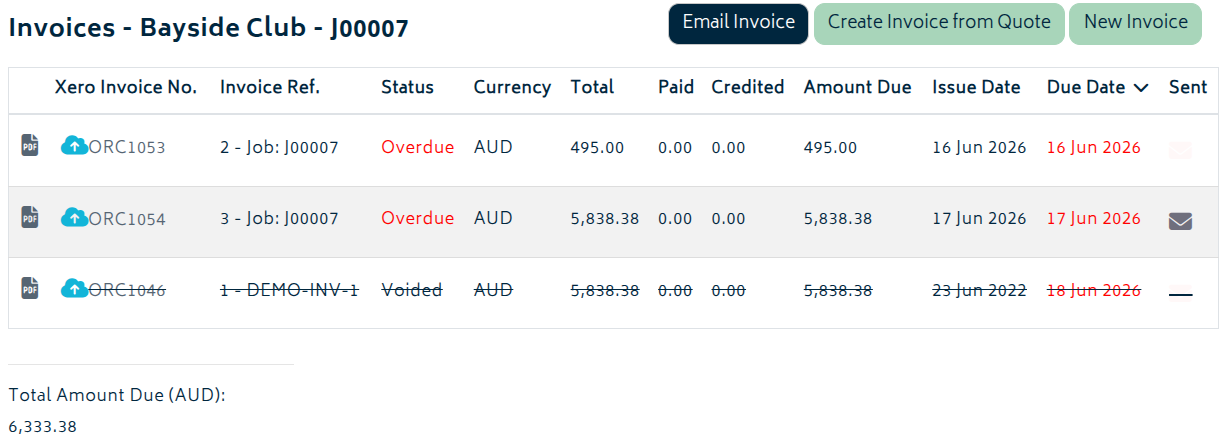
To get started, navigate to either the job invoices page (refer to the Job Actions section for more information) or to the Reports > Invoices page from the top navigation menu.
Editing Draft Invoices
From the list of invoices, click on any draft invoice in the list and the invoice edit page will open.

Note, when clicking on the row from the list to open the edit page, you can click on any column where there is not a link, i.e. do not click on the PDF link, the Xero link or the Job Link (Reports>Invoices page) if you want to open the edit page. You will see the following screen when you open the draft invoice for editing:
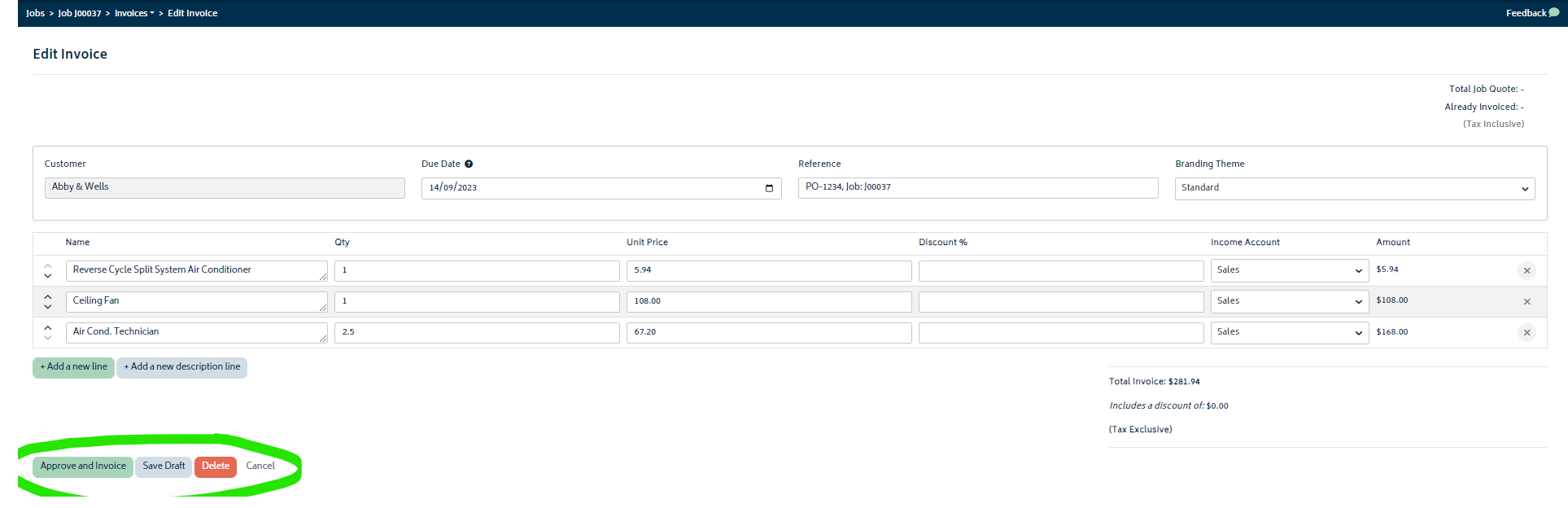
From this screen, make any changes required. You then have the option to Approve, Save, Delete or Cancel. Refer to Create Invoices for more information on these options.
Editing Approved Invoices
From the list of invoices, click on any approved invoice in the list and the invoice edit page will open.

You will see the following screen when you open the invoice:
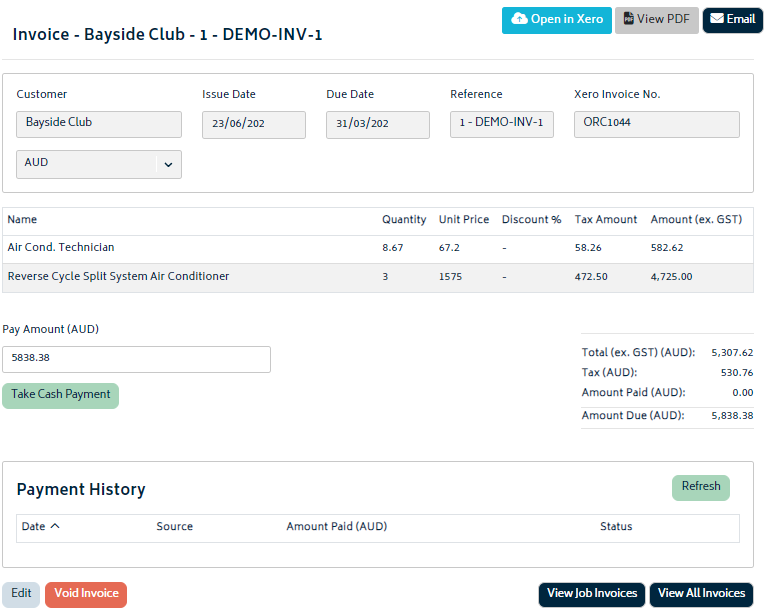
The page includes an Invoice tab and an Attachments tab. The Attachments tab allows you to upload and review files linked to that invoice. Uploaded invoice attachments can also be included when you email the invoice from Gojee.
If there are no payments or credit applications on the invoice, you’ll be able to click the Edit button. Click on the Edit button at the bottom left of the screen to open the edit screen for the approved invoice. It will look much the same as when editing a draft invoice.
Make the required changes and then hit Save. This will update the approved invoice in both Gojee and Xero. Note that this will also update the PDF – syncing the PDF from Xero on an approved invoice is only required for updating payment status on the PDF.
Voiding Approved Invoices
From the list of invoices, click on any approved invoice in the list and the invoice edit page will open.
As long as there are no payments on the invoice, you’ll be able to click on the Void Invoice button next to the Edit button. The invoice will be marked as voided in both Xero and Gojee. The invoice will still be visible in Gojee with a strike-through, but the invoice amount will not contribute to any job totals.