
Knowledge Base
Customer Price List
Last updated on May 22nd, 2026
Introduction to Customer Pricing
The Customer Price List tab allows you to save pricing rules for a customer so those rules can be applied automatically when items are added to a customer job BOM. This tab is only available for contacts that are marked as customers.
You can use it to maintain one customer-wide default rule and separate item-specific rules for selected SKUs. If both apply, the item-specific rule takes priority.
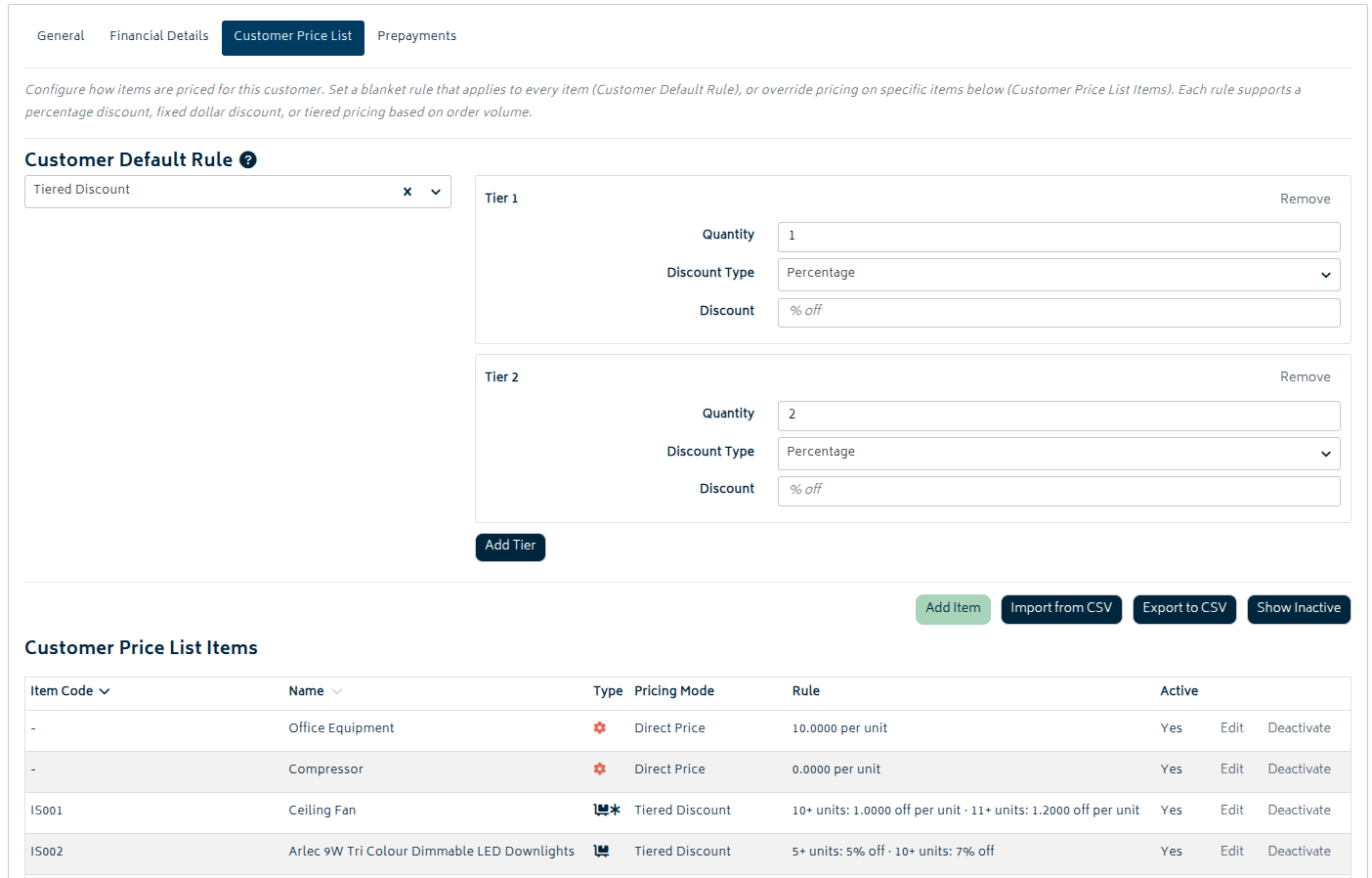
The available pricing modes are:
- Customer default rule: Percentage Discount, Fixed Amount Discount, or Tiered Discount.
- Item-specific rule: Direct Price, Percentage Discount, Fixed Amount Discount, or Tiered Discount.
Customer Default Rule
The top section of the tab is the Customer Default Rule. This rule applies to every job item for the customer unless an item-specific rule overrides it.
To save or update the default rule:
- Select a pricing mode.
- Enter the rule values.
- Once the rule is valid, Gojee saves the change automatically.
Default rules support these pricing modes:
- Percentage Discount for a single percentage off each eligible item.
- Fixed Amount Discount for a dollar amount adjustment per unit.
- Tiered Discount for quantity-based adjustments that change as the ordered quantity increases.
Item Specific Rules
The Customer Price List Items table is used for item-specific pricing rules. These rules apply only to the selected SKU and override the customer default rule for that item. The item table shows the current rule for each active customer price list row, including the item code, item name, pricing mode, the rule summary, and whether the row is active.
Item-specific price list rules only apply when the item is added at the base level of a job. They do not apply when the item is added as a child under a template or section.
To add an item-specific rule:
- Click Add Item.
- Select the item you want to price.
- Choose a pricing mode.
- Enter the rule values and click Save.
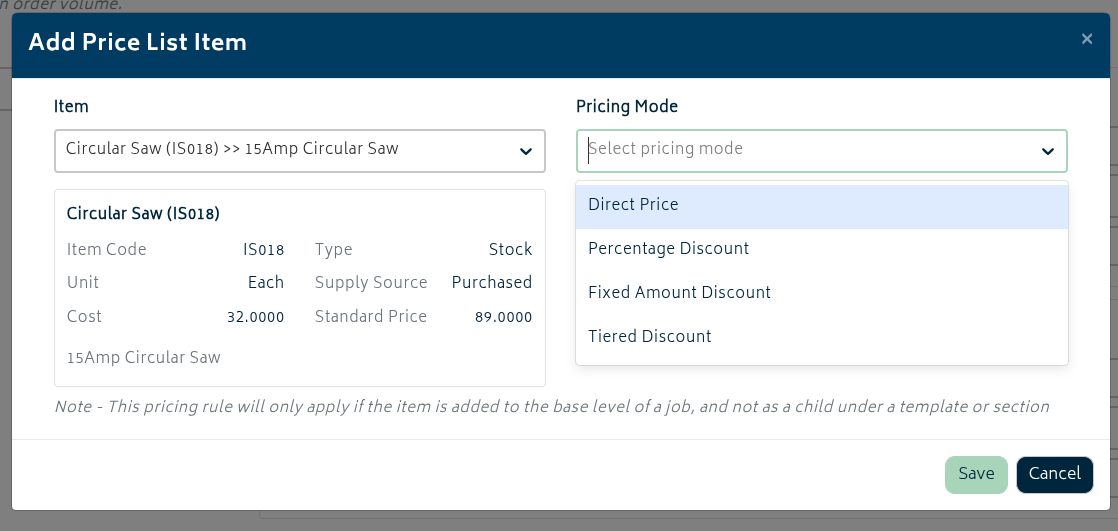
Item-specific rows support these pricing modes:
-
- Direct Price sets the exact unit price for that item. This can be 0 or greater.
- Percentage Discount applies a percentage reduction.
- Fixed Amount Discount applies a dollar adjustment per unit – can be positive or negative.
- Tiered Discount applies quantity-based pricing adjustments.
For items that are in the list already, you will be able to perform the following actions:
- Use Edit to change the pricing mode or values for an existing item row.
- Use Deactivate to stop applying a row to future BOM additions.
- Use Reactivate to bring back an inactive row.
- Use Show Inactive when you need to review or restore old rules.
Import and Export Price Lists
Customer price lists can also be maintained via CSV import and export.
Single-customer import/export
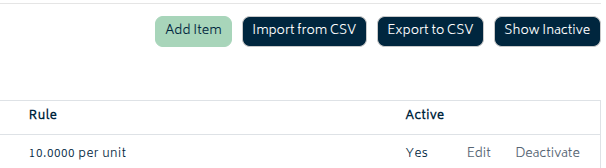
- Open a customer contact and go to the Customer Price List tab.
- Use Import from CSV to upload rules for that one customer.
- Use Export to CSV to download that customer’s current default rule and item-specific rows.
For the single-customer import template, leave the customer name column blank. Every row is applied to the current customer automatically.
Multi-customer import or export
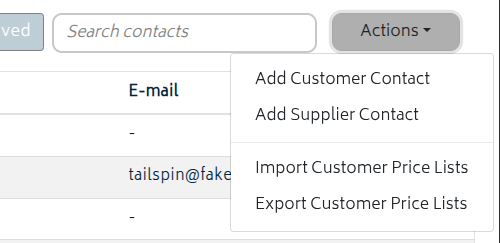
- Go to Resources > Contacts.
- Use Actions > Import Customer Price Lists to upload rows for multiple customers.
- Use Actions > Export Customer Price Lists to download customer price list data across the organisation.
Multi-customer CSV rows must use a customer name that matches an existing customer in Gojee.
The CSV uses these columns:
- Required columns: customer name, item code, item name, item type, pricing rule, pricing
- Optional column: deactivated
Rows identify the target in one of three ways:
- Populate item code for coded stock items.
- Leave item code blank and populate item name plus item type for assets, professions, templates, or other non-coded items.
- Leave item code, item name, and item type blank to update the customer default rule.
Item type must be one of stock, asset, profession, or template.
Pricing rule must be one of direct price, percentage discount, fixed amount discount, or tiered discount. Direct price is only valid on item-specific rows, not on a default-rule row.
Examples of pricing values:
- Direct Price: 95.00
- Percentage Discount: 10%
- Fixed Amount Discount: 2.50
- Tiered Discount: “5:2.00,10:5.00” or “5:5%,20:10%,100:15%”
Note that for “percentage discount” pricing rules, the % symbol is not necessary. However, for “tiered discount” pricing rules, it is mandatory to differentiate between percentage based tier discounts and raw dollar discounts.
Use the deactivated column to manage status:
- yes deactivates an item-specific row.
- no reactivates an item-specific row.
- On a default-rule row, yes clears the default rule. Leave pricing rule and pricing blank when you do this.
Using Pricing Rules in Jobs
Once you’ve completed the steps above to set up a customer’s price list, the system will automatically apply these pricing schemes to any item added onto a job’s BOM. Any item affected by the customer’s price rules will have its “Total price” column tinted blue and allow you to view the rule affecting the row.
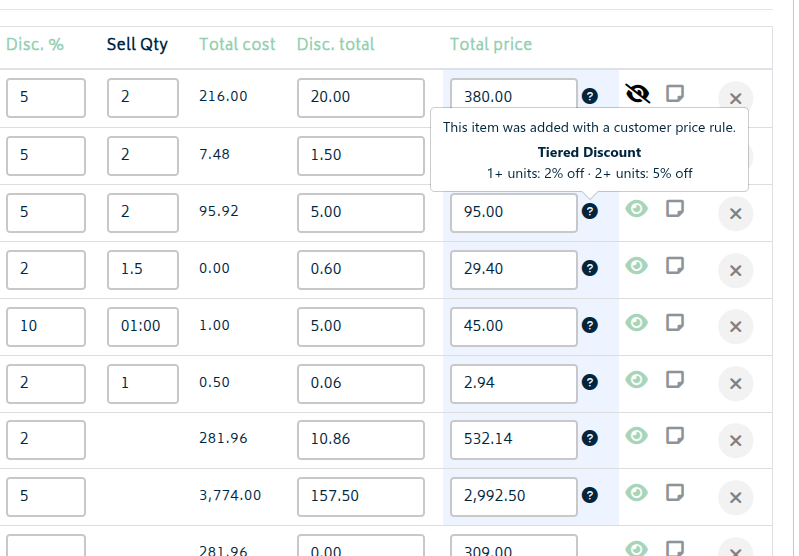
To get started:
- Create a new job (refer to Create a Job for more information).
- Choose the customer on the Customer tab.
- Add the items onto the BOM page.
- Any matching customer price list rule will be applied automatically.
- If an item-specific rule exists for that SKU, it is used first.
- If no item-specific rule exists, the customer default rule is used if one has been saved.
- You can still adjust pricing manually on the BOM when needed.
Pricing schemes will also be automatically applied to any jobs created via the Import Jobs CSV tool. Any items in the list that are given prices in the CSV will use those instead as price overrides – if you want the pricing schemes to apply, you can leave the fields blank.


