
Knowledge Base
FAQ – Import and Export
Last updated on March 20th, 2024
Importing
Q: What supports CSV imports?
A: Gojee currently supports CSV imports for inventory items, inventory item quantities (via initial quantity/bulk stock adjustment CSV import), asset types, asset instances, asset monitor points, professions, staff, staff custom earning rates, time entries, jobs, templates, supplier catalogues, customer price lists, and tags. Some of these options only appear if you have the relevant role or add-on enabled. Note that templates, time entries, and job imports are import-only and cannot be subsequently updated via CSV import – and that staff are best imported via a Xero sync if you plan to use Xero payroll.
Q: I’m trying to import a supplier catalogue, but it’s not working. It keeps coming up with “Item code does not exist”, but the items are definitely already in Gojee.
A: Double-check to make sure you don’t have leading or trailing spaces attached to the item code in the CSV. The item code must be exactly the same as it exists in Gojee.
Q: How do I import customers or suppliers into Gojee in bulk?
A: You’ll need to import via Xero’s import tool, then sync the contacts across to Gojee. Please see the Contacts FAQ regarding supplier imports.
Q: How do I sync our jobs with 3rd party CAD programs/stock ordering programs?
A: At present, Gojee does not offer direct integration with any particular CAD software packages or purchasing programs. Typically, organisations will set up their own Excel macro to transform the output from their CAD programs or ordering software. This can be then imported via the “Import Jobs” button on the Customer Jobs list. After importing, the job can proceed within Gojee.
An Excel macro can be set up in such a way that it rebuilds the export from your software and maps entries to item codes, professions, templates, or assets you have set up in Gojee. Any entries new to Gojee can also be imported onto the job as single-use items, and if organisation is needed, job sections and nesting are supported by the import as well. Refer to the Importing Job Data article for more information on how to set up the CSV.
Exporting
Q: What can I export as a CSV from Gojee?
A: Gojee can export its inventory, assets, asset instances, professions, staff, staff earning rates, templates, tags, supplier catalogues, customer price lists, and purchase orders. Report pages such as Inventory Movements and the Stock on Hand Report also offer options for export.
Q: How can I see where all my items are stored? Export Inventory doesn’t have the storage locations of some items.
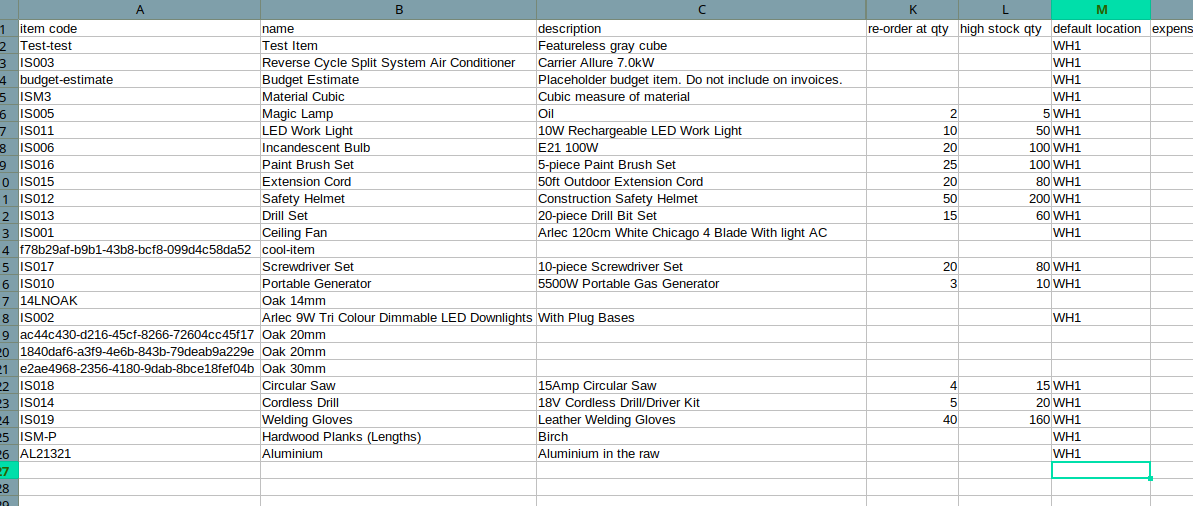
A: The Export Inventory to CSV will export what the item’s default location is and how many you have total, but it won’t tell you which items and how many of them are currently at what location. If the default location isn’t set up for an item, it will be blank, like so:
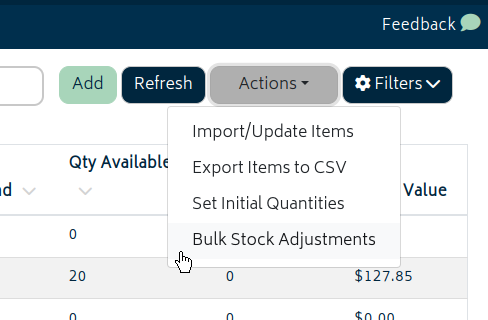
If you want to see where the items are, you can use the Bulk Stock Adjustments option to do so:
You can export the bulk stock adjustment file with the link at the top of the modal.
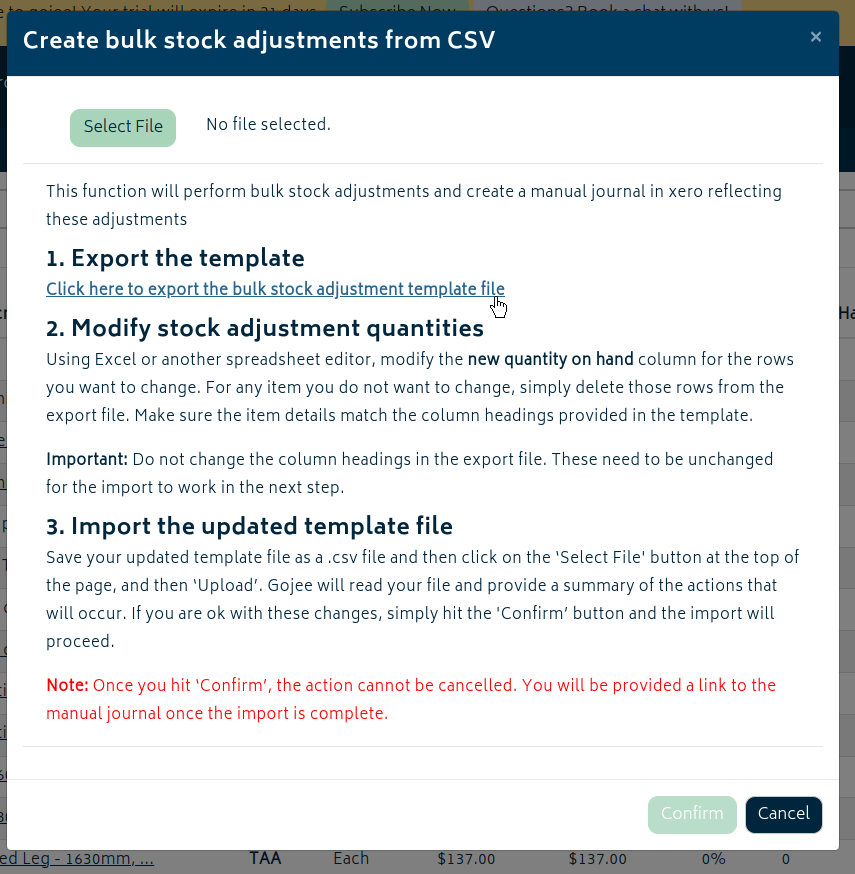
The exported Bulk Stock Adjustments template will show each item and where it is:

Any items with a quantity of 0 will default to the most recently added location.


